New Device Activation Process for Installers and Distributors
Overview
Reconeyez has introduced a new device claiming process that replaces the previous certificate-based workflow. The new process simplifies deployment by allowing devices to be manufactured as generic stock and activated only when assigned to a customer.
For installers and distributors, this means devices no longer need customer-specific certificates loaded before shipment. Instead, activation is performed directly through the Reconeyez Installer App.
Please view the new Reconeyez device claiming video tutorial for an overview.
Key Benefits
| Previous Process | New Claiming Process |
|---|---|
| Devices required customer-specific certificates before deployment | Devices are shipped as generic stock |
| Certificates had to be managed manually | Certificate management is fully automatic |
| Devices were prepared for specific customers before shipping | Any authorised user can claim devices when needed |
| More complex logistics and handling | Faster installation and deployment |
Requirements Before Claiming
Before starting, ensure you have:
| Requirement | Details |
|---|---|
| Installer App | Version 4.0.0 or later |
| User Permissions | Manage devices, Moderator, Owner, or equivalent custom role for the installer |
| Internet Connection | Mobile data or Wi-Fi |
| Unclaimed devices | Unclaimed devices powered on and within radio range |
| Correct Server Access | Logged in to the correct Reconeyez server/workspace |
Important: Older Installer App versions can detect claimable devices but cannot access, claim, unclaim, or configure them.
Understanding Device States
Devices using the new firmware operate in one of two states:
Unclaimed
When a device is unclaimed:
- Motion alarms are disabled
- Tamper alarms are disabled
- Camera photo capture is disabled
- Device communication is limited to the claiming process
- The device cannot operate normally
Claimed
After successful claiming:
- Normal operation is enabled
- Full encrypted communication is established
- Alarm reporting becomes active
- Camera photo capture becomes active
- The device is linked to the selected customer and server
Claiming Workflow
Step 1 – Power Up Devices
- Insert batteries and power up the Reconeyez devices.
- Connect the connector mote to your Android device via USB cable or Bluetooth.
- The devices must be within radio range of your Android phone running the Installer App.
Step 2 – Log Into the Installer app
Open the Reconeyez Installer App and:
- Log in to the correct Reconeyez server (eg. https://demo.reconeyez.com/) with Manage devices level or higher user role.
- Scan for nearby devices on Channel 22.
- Unclaimed devices will appear in the Unclaimed Devices section.
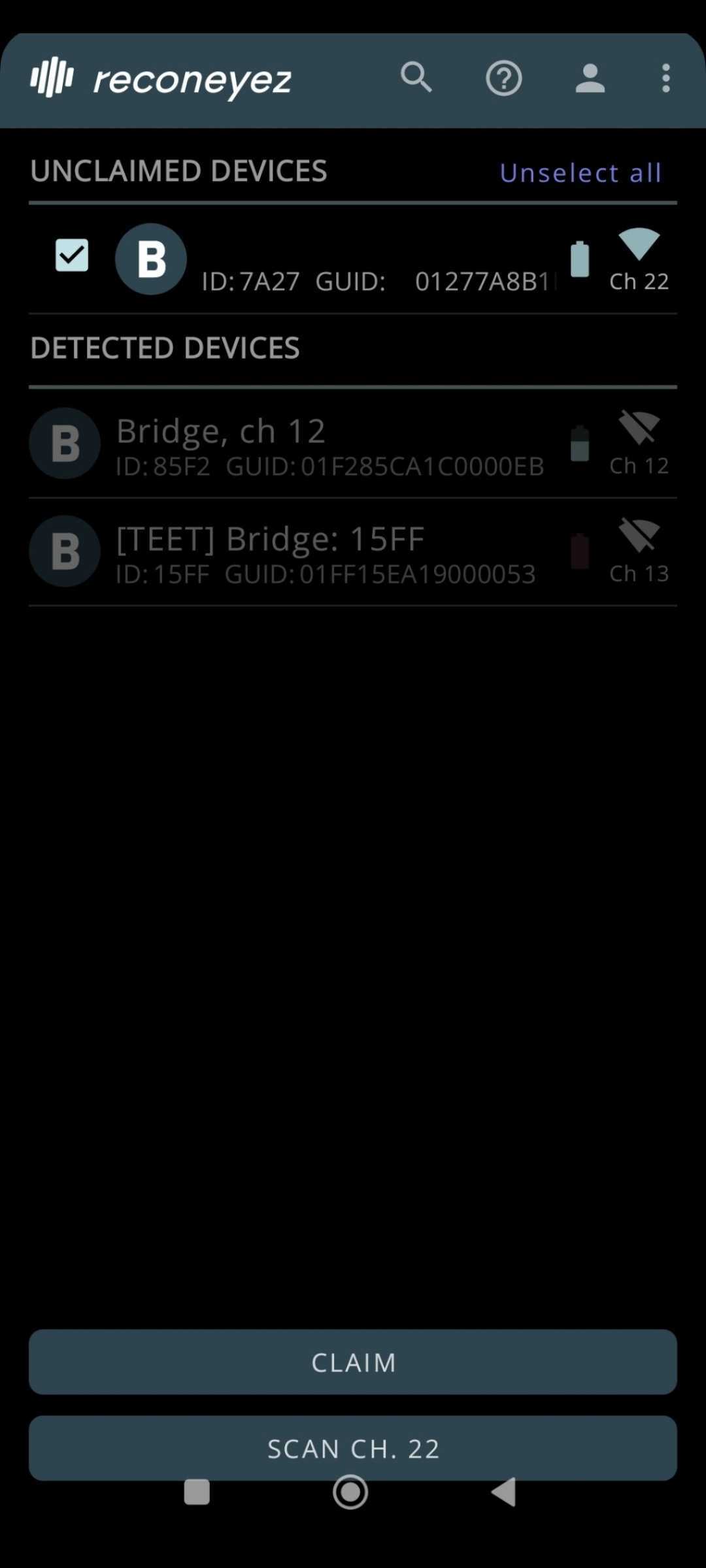 Step 3 – Selecting Devices and Supported Firmware versions
Select one or more devices that are displayed in the Installation app after scanning. Please note that only the new devices with the latest device firmware need to be claimed. The supported firmware versions are indicated below.
Supported firmware versions:
| Device | FW version |
| Detector | 7.15.1 |
| Siren | 7.4.1 |
| Keypad | 1.2.1 |
| Bridge 4G | 7.13.1 |
| Bridge IO v2 | 7.6.1 |
| Bridge IO | 7.6.1 |
Step 4 – Claim Devices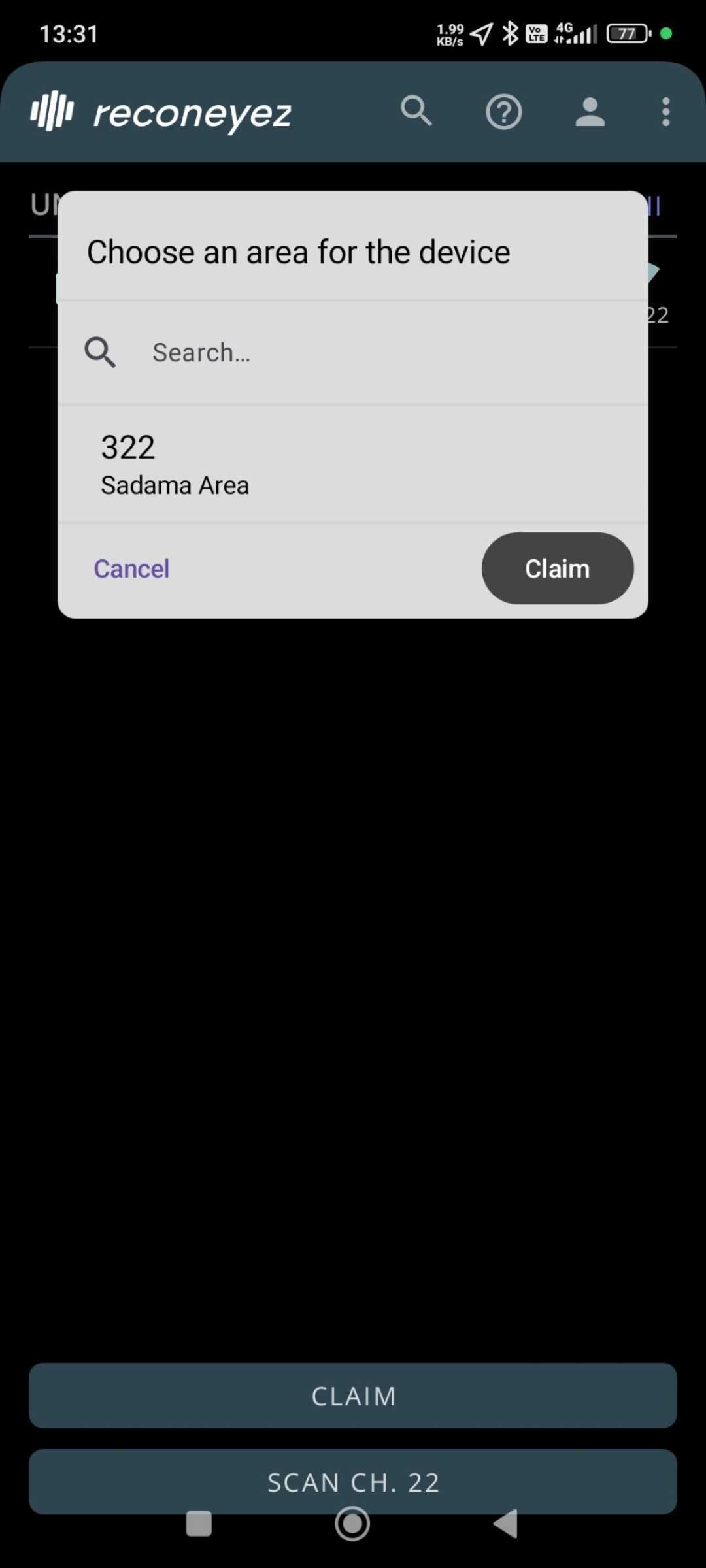
- Tap Claim.
- Select the destination area from the device area tree.
- Important: Device areas for the installed sites need to be created in advance in the Reconeyez cloud.
- Confirm the claim.
The Installer App automatically:
- Moves the claimed device into the correct device area in the server
- Assigns all users who have access to this area secure access via the app
- Ensures automatic and seamless secure key exchange with the device
No certificate handling is required from the installer.
Step 5 – Verify Successful Claiming
Claiming typically takes 30–60 seconds per device.
Verify by rescanning the devices that:
- The device appears in the claimed device list.
- The device is visible in the selected device area.
- The device comes online after triggering tamper alarms for testing.
For quick verification, trigger a tamper alarm by gently shaking and tilting the device and confirm the event appears on the Reconeyez server.
Recommended Installation Order
Always Claim Bridges First
This is the most important deployment rule.
Detectors, sirens, and keypads communicate through nearby bridges. If an unclaimed bridge is the strongest available radio path, communication may fail.
Recommended Sequence
| Order | Device Type |
|---|---|
| 1 | Bridges |
| 2 | Detectors |
| 3 | Sirens |
| 4 | Keypads |
If unclaimed bridges are nearby, either:
- Claim them first, or
- Power them off during installation.
Bulk Claiming
Multiple devices can be claimed simultaneously.
Recommended Batch Size
Up to 8 devices at a time.
Process
- Power on all devices.
- Scan for devices.
- Select multiple devices.
- Choose a single destination area.
- Start claiming.
Typical processing time:
| Devices | Approximate Time |
|---|---|
| 1 Device | 30–60 seconds |
| 8 Devices | 2–3 minutes |
Unclaiming Devices
Unclaiming returns a device to its factory-reset state and allows reassignment to another customer.
When to Unclaim
- Device transfer to another customer
- Product return
- Server migration
- Reassignment between customer environments
What Happens During Unclaiming
| Action | Result |
|---|---|
| Customer association removed | Device disappears from cloud workspace |
| Certificates removed | Device can be claimed again |
| Device data cleared | Local event history is erased |
| Configuration reset | Factory-style settings restored |
Unclaim Procedure
- Log in to the server where the device is currently claimed.
- Scan for devices.
- Open the claimed device.
- Select Unclaim.
- Confirm the action.
- Wait for completion.
- Perform a new scan.
The device should now appear under Unclaimed Devices.
Important: Always perform a fresh scan after unclaiming to verify the device state.
Existing Installations
Existing customer systems continue operating normally after firmware updates.
No immediate migration is required.
Troubleshooting
| Issue | Recommended Action |
|---|---|
| Device not visible during scan | Verify battery installation, radio range, and Channel 22 |
| Claiming fails to start | Verify server login, permissions, and internet connection |
| Cannot select target area | Check user account's area permissions |
| Device appears claimed but not visible on server | Restart the app and rescan |
| Detector alarms not reaching cloud | Ensure nearby bridges are claimed |
| Frequent claiming failures | Move closer to devices and reduce radio interference |
| Device state unclear after claim/unclaim | Perform a new scan to verify device status |
Important Notes
Certificates Are Fully Automated
Installers and distributors do not need to:
- Load certificates
- Copy certificate files
- Request new certificate generation
- Manage certificate renewals
All certificate management is handled automatically by the Installer App and Reconeyez backend services.
Golden Rule
After every claim or unclaim operation, always perform a fresh scan to verify the device is in the expected state.